Add a signature to your outgoing emails to save having to type the same thing over and over.
If you use Mozilla Thunderbird there’s a built-in signature feature:
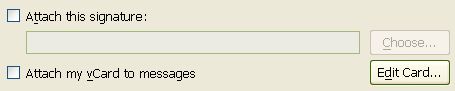
You can have a plain text signature very easily.
To have a plain text signature:
- Create a text file e.g. signature.txt and save it somewhere on your computer, like in “My Documents”
- Open the file in a text editor (e.g. Notepad) and enter your signature, it might be:
Regards,
Joe Bloggs - In Thunderbird, go to Tools > Account Settings…
- Click in the box next to “Attach this signature:” to put a check mark in the box and enable the Choose… button.
- Browse to where you saved the signature.txt (or signature.html) file and double-click on it
- Click on OK to close the Account Settings box
That’s it. Everytime you send an email using Thunderbird your signature…
Regards,
Joe Bloggs
…  will automatically be entered for you.
If you have a web page editor (like OOo or KompoZer) or you know how to do some simple HTML coding yourself, you can create a rich text signature (e.g. with bold, italics or colour). I’ll post instructions for doing this next time. In another post I’ll explain the vCard feature.


No user commented in " Add a (plain text) signature to your emails "
Follow-up comment rss or Leave a Trackback