In previous posts here and here I explained how to add signatures to your outgoing emails. I also mentioned another feature that you could use called vCard.
vCard is a file format standard for electronic business cards.
http://en.wikipedia.org/wiki/VCard
Without going into too much detail here, a vCard attached to an email you send can include as much or as little information as you wish. Generally, they include Contact Numbers, Postal Address and perhaps Job Title (if used in a work environment).
Here’s how to set one up in Thunderbird:
- In Thunderbird, go to Tools > Account Settings…
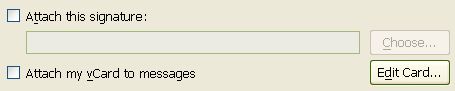
- Click in the box next to “Attach my vCard to messages” to put a check mark in the box
- Click the Edit Card… button
- Enter all the information you want to include in your vCard (remember that ALL of this information will be available to ANYONE you send emails to)
- Click on OK to save your vCard
- Click on OK to close the Account Settings box
That’s it. Every time you send an email using Thunderbird your vCard will be attached to the message. This is how it will appear to someone also using Thunderbird who receives an email from you:
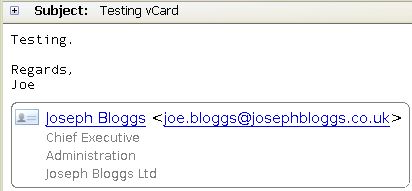
The above test vCard had information included in every field, to show what is displayed from vCards in Thunderbird. To see the rest of the information the recipient can just click on the card and then either confirm adding you to their address book, or cancel if they just want to view the info.
Other email clients may process or display vCards differently.
Hopefully that covers all information regarding signatures and vCards. If you have any comments or questions please register and add your comment below.


No user commented in " Send your details in emails using a vCard "
Follow-up comment rss or Leave a Trackback